Test Tools and Functionality
The test tools below are available to candidates sitting the test. Becoming familiar with these essential tools may save yourself valuable time on your test day.
The functionality is also explained in the Tour Tutorial.
On-screen calculator
A simple on-screen calculator will be available for the decision making and quantitative reasoning subtests. To access this click on the icon in the top left hand side of the screen. The calculator will look similar to this:
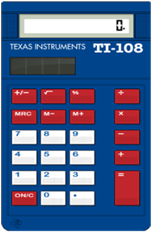
The calculator is integrated into the practice tests and we strongly recommend that you familiarise yourself with the functionality.
The calculator button will be in the blue toolbar, above the question.
- To open the calculator, click the button.
- To move the calculator, click on the part of the window that says 'Calculator' and drag it.
- Operate the calculator by clicking the necessary buttons with your mouse or by using your keyboard for number inputs. If using your keyboard, make sure Number Lock 'Num Lock' is on.
- To close the calculator, click the X button or simply move on to the next question.
Important: The calculator opens in a in a separate window to the test screen. If you click off the calculator window back to the test screen (or use a keyboard shortcut, for example Alt + F to Flag for Review) the calculator will not function until you click back on it.
Useful functionality
- To clear the calculator, click the ON/C button.
- The Backspace key clears all the digits at once (equivalent to pressing the ON/C button).
- There are no other buttons or keyboard shortcuts to delete one number at a time during calculations.
If you require assistance with the calculator during your test please raise your hand to notify the invigilator.
Keyboard Shortcuts
Keyboard shortcuts can be used to navigate through the test if you find this preferable to using the mouse.
Wherever there is a letter underlined, the Alt key can be used with the underlined letter as a keyboard shortcut.
Common shortcuts are listed below:
- Use Alt + N to navigate to the next screen or question
- Use Alt + P to navigate to the previous question
- Use Alt + C to call up the calculator
- Use Alt + F to flag a question for review
- Use Alt + V to call up the Navigator window
The shortcuts available at any time during the live test depend on which screen is currently being viewed.
Keyboard shortcuts can also be used to select answers. An example would be striking the ‘B’ key to select answer response B. The mouse must be used to select a response in questions requiring you to drag and drop an answer.
You can familiarise yourself with this, and other aspects of navigation, by using the practice materials available on our website.
Shortcuts in the practice materials
If the standard shortcuts do not work for you in the practice materials this may be because of the device, operating system or browser you are using. For example, the shortcut Alt + F will not flag a question for review in the practice materials if you use Google Chrome as your browser. This is because Alt + F is a default shortcut in the Google Chrome settings.
Notebook and marker pen
You may wish to take notes or do workings out during your test, particularly in Decision Making and Quantitative Reasoning.
You will be given a marker pen and a laminated notebook to make notes during your test. If you are not provided these when you enter the test room, please request them by raising your hand.
The invigilator will have checked the pen is working before giving it out. However you should check the pen before you start to avoid seeking assistance during the test. Ensure to replace the cap when not in use to prevent it from drying out. If you require a replacement during the test, hold the pen in the air to request one from the invigilator.
The notebook is A4 and contains several laminated pages. It is not erasable so if a replacement is required, raise your hand to request one from the invigilator. At test centres where notebooks are not available, candidates will be provided with a laminated noteboard instead.
Scroll bar
Sometimes a question will have content that is bigger than the screen.
- If the content is longer than the screen, you will see a scroll bar on the right of the text. Drag the scroll bar all the way to the bottom to view all unseen content.
- If the content is wider than the screen, you will see a scroll bar below the text. Drag the scroll bar all the way to the right to view all unseen content.
A pop-up indicator will appear to alert you if there is unseen content. You will be prevented from moving on until you have scrolled to view all of the information on the screen.
Timer and progress indicator
Each subtest and instruction screen is separately timed.
A Countdown Timer will be located in the top right of the screen. When there is less than 5 minutes remaining, the timer will turn yellow.
If you run out of test time, you will receive the following onscreen message: “Time Expired. Your time on this section has expired. Timing has begun on the next section. Click OK to continue”.
If you don’t click ‘OK’ and move on you will lose time from other sections.
A Progress Indicator will be located just below the timer. This will show the question you are on out of the total available in the subtest.
You can minimise the time remaining and the question number reminders by clicking on the icons. To restore them at any point, click again on the icons.
Drag and Drop answers
Some questions in the Decision Making and the Situational Judgement subtests require you to drag and drop the correct answer. To do this you need to click on and then drag your chosen response and drop it into the relevant box.
You can change your answer by dragging a different response over to the box. You can remove an answer by dragging it away from the box.
You can practise using the drag and drop functionality in the Tour Tutorial.
Flagging questions for review
You may want to flag a question in order to review it, if you have time remaining at the end of the subtest.
The Flag for Review button will be in the blue toolbar, located at the top right of the screen.
Click the Flag for Review button and it will change colour to indicate the question has been flagged.
You can use the 'Navigator' (explained below) to check which questions you have flagged and to navigate directly to them.
If you have reached the final question of the subtest AND you have time remaining, when you click next you will be presented with the review screen for that subtest.
Questions you have flagged for review will be highlighted on the Review Screen, as will any incomplete questions.
From this screen you can ‘review all’, ‘review incomplete’ or ‘review flagged’ questions. You may also click on a question number to return directly to its location in the subtest. You can return to the Review Screen by clicking the ‘Review Screen’ button in the bottom left of the screen.
You can continue to review questions in the subtest until your time expires or you click ‘End Review’.
Navigator
The Navigator function at the bottom right of the screen allows you to navigate to questions within a subtest.
You may want to navigate to a particular question within a subtest or check which questions you have flagged for review or not answered.
The Navigator button will be in the blue toolbar, located at the bottom right of the screen.
Click the Navigator button to open a window that lists the questions in the subtest, their status and which have been flagged for review.
There is a scroll bar on the right of the window to allow you to view the full list of questions in the subtest.
A question will have one of these 3 statuses:
- Unseen – you have not yet seen this question.
- Incomplete – you have seen this question and you have not answered it or have only partially answered it.
- Complete – you have seen and answered this question.
At the bottom left of the window is a count of the number of questions which are 'Unseen' or 'Incomplete' in the subtest.
If a question is flagged for review, a blue flag will be seen in the 'Flagged – Review' column.
To navigate to a particular question in the subtest, click on the question number.
Important: You can only use the Navigator to move to questions within the current subtest.
To close the Navigator window, click the Close button or the X button in the top right of the window. You must close the Navigator before you can take any other actions in the test.
You can order the columns in the Navigator window in different ways by clicking on the light blue column header bar.
- Click the 'Question' header bar once to reverse the order of questions. To return questions in numerical order click the Question header bar again.
- Click the 'Status' header bar once to order the questions by 'Unseen', then 'Incomplete', followed by 'Complete'. Click the header bar again to reverse this order. Click the 'Question' header bar once to return questions to their numerical order.
- Click the 'Flagged – Review' header bar once to order questions that are flagged for review first. Click the 'Question' header bar once to return questions in numerical order.
- Closing the Navigator window also resets the columns so questions present in numerical order.
You can practise using Navigator in the Question Banks and Practice Tests.
Workstation and PC
You will be allocated a desk space at which you will find a PC, monitor, standard keyboard and mouse.
-

Preparation Advice and Resources
Prepare for the UCAT ANZ using our free official practice materials. We believe that all candidates should have access to free preparation materials to support their test preparation. The Practice Tests are representative of the live tes...
Find out more -
Practice Tests and Question Banks
These example questions and practice tests are representative of the live test. We recommend you use these official materials to prepare for your test. Refer to the Tour Tutorial, as it explains how to use the onscreen calculator, navigat...
Find out more -
Candidate Advice
A selection of high-scoring candidates who have sat the UCAT ANZ test talk about their experiences and offer their advice on how they prepared for the test.
Find out more